
Enable users to request admin approval for Intro
Connecting Intro requires consent that only an admin can grant. By default, some Microsoft 365 organisations also don't let users request that approval, so a user trying to connect Intro hits a dead end: they see a "Need admin approval" message with no way to request it.
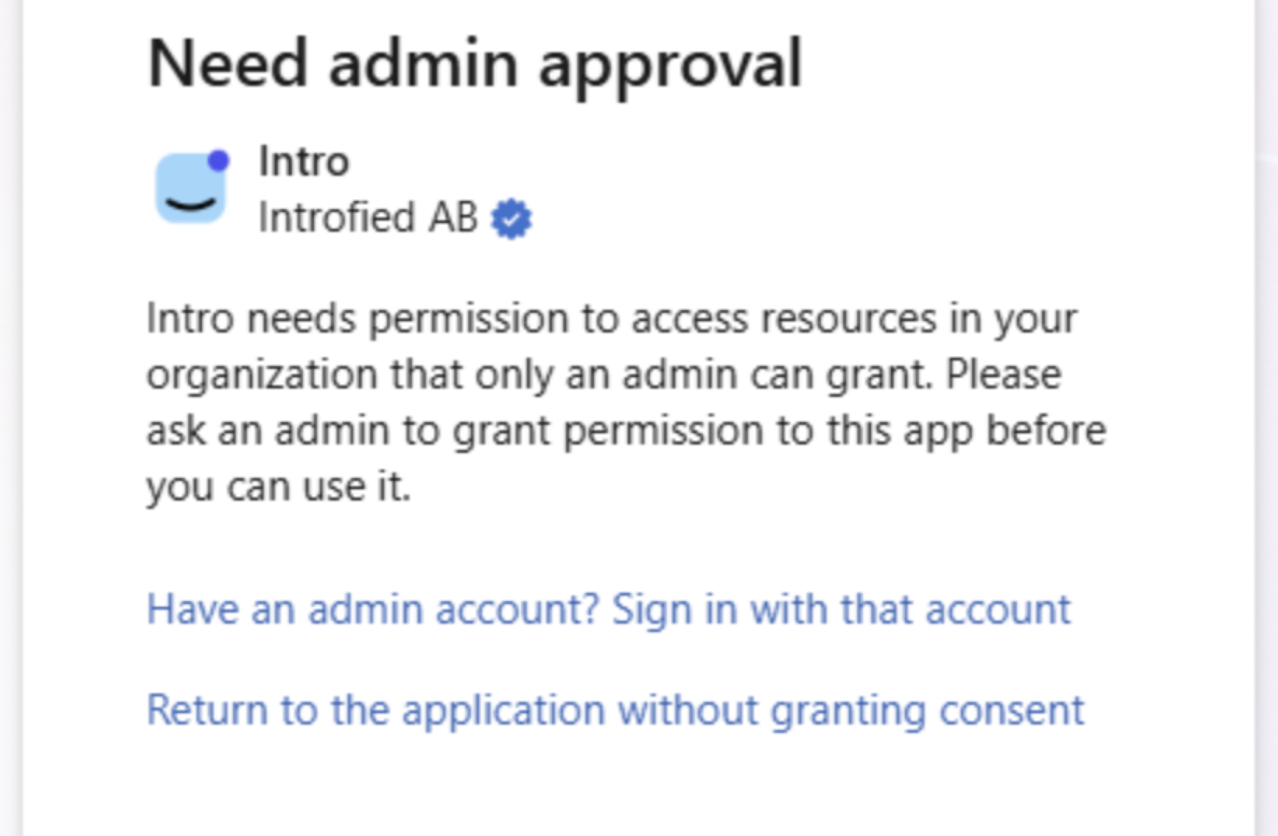
To fix this, an admin can turn on the admin consent workflow in Microsoft Entra. Once enabled, users will be able to send an approval request straight from this screen, and admins can review and approve it (see Connect your Outlook account & admin consent).
Enable the admin consent workflow
- Go to the Azure portal at https://portal.azure.com and sign in with an admin account.
- Navigate to Microsoft Entra ID → Enterprise applications.
- Under Security, select Consent and permissions → Admin consent settings.
- Set Users can request admin consent to apps they are unable to consent to to Yes.
- Choose who should review and act on these requests (the reviewers), configure the notification settings, and click Save.
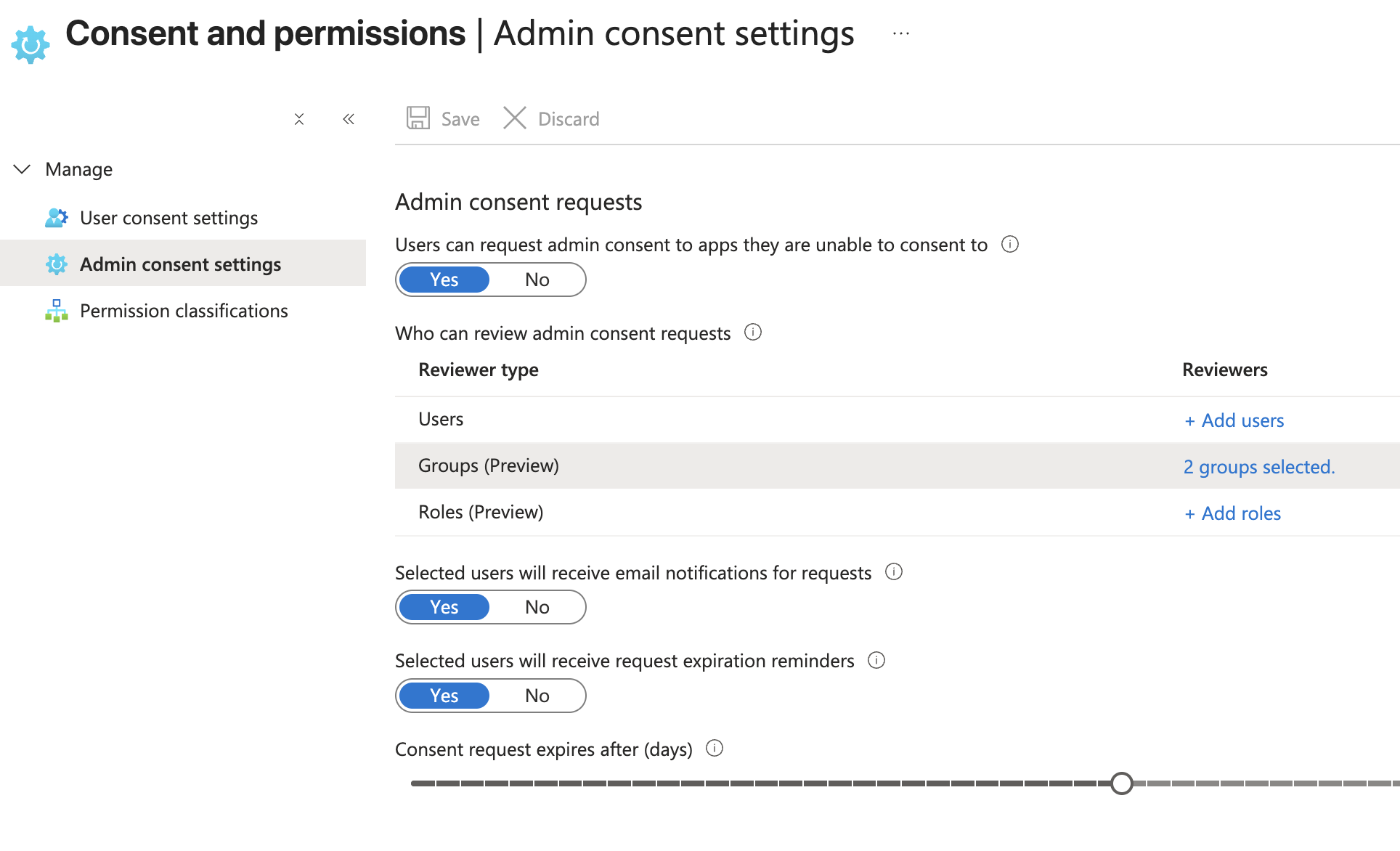
The short video below walks through these steps in the Azure portal:
Once saved, users who try to connect Intro will be able to request approval, and your selected reviewers will be notified so they can approve it.
If you have any questions, reach out to hi@intro.io and we'll be happy to help.
Still need help?
Reach out to our team at hi@intro.io.